


There’s nothing worse for getting online than having slow home internet. This can cause frustration not only for yourself but everyone else who attempts to access their favorite app or service. We’ve seen what can occur when big companies like Cloudflare and Amazon have problems with their own infrastructure, so when it happens at home, I have a few tools at hand to quickly diagnose what the root cause is. If you’ve built out your home network or simply use an ISP-provided router, these handy pointers can help you get back online as soon as possible.
Ping
The best place to start

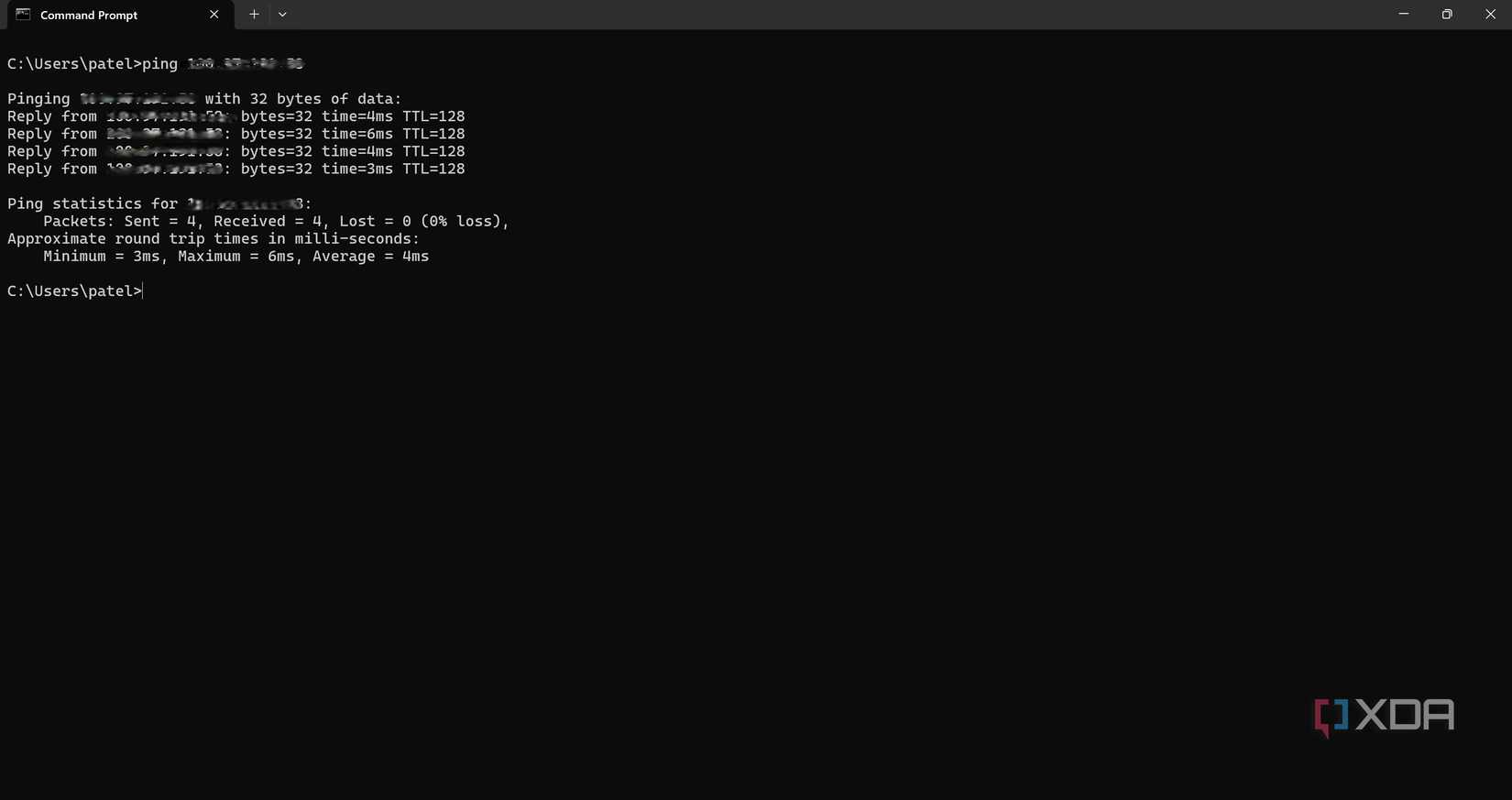
Ping is as basic as they come for troubleshooting network problems. This tool sends out an Internet Control Message Protocol (ICMP) echo request and waits for a response. Think of it like your device asking if anyone is at the destination. As well as showing whether something is accessible within your own network and beyond, ping can be used by all supported devices and software to see if it’s possible to reach a specific IP address. This could be a publicly available domain name service (DNS) server or some other public IP.
What makes ping particularly useful is that if you manage to get a response, it will detail the latency for each request and at the end, how many packets were lost. Ping will usually run until cancelled, which can also be useful for creating scripts and configuring services to notify you should something become unreachable. I have a few ping commands running through Homepage, for instance, which can then send me notifications that one of our self-hosted services is down. It still needs to be separated from the Proxmox node, however, to show when the entire server is offline, but I’ll get around to it eventually.


5 network issues you can troubleshoot before calling support
Look, we get it. Networking is complex but some things you can do on your own.
Speed tests
speedtest.net is your best friend
If the internet is working but seems to be acting sluggishly, a speed test would be my next stop to see just how much of an issue it is. Ping can help determine whether your entire network is down, whereas a good and reliable speed test can be useful for seeing just how badly your connection with your ISP is performing. These handy tools measure download and upload speeds, as well as latency, and can be useful for determining if you’re being throttled, have congested Wi-Fi (compare results between devices), or have an unknown bottleneck.
Running tests on a few devices can provide an idea as to what’s going on. Should one device perform considerably better than another (outside of Wi-Fi vs. wired), you can use this data to better determine what’s causing the slowdown.

Speedtest now helps you call out your network operator’s false coverage claims
Speedtest has updated its network coverage map to help users easily identify connectivity issues in their area.
Traceroute
Hopping between nodes

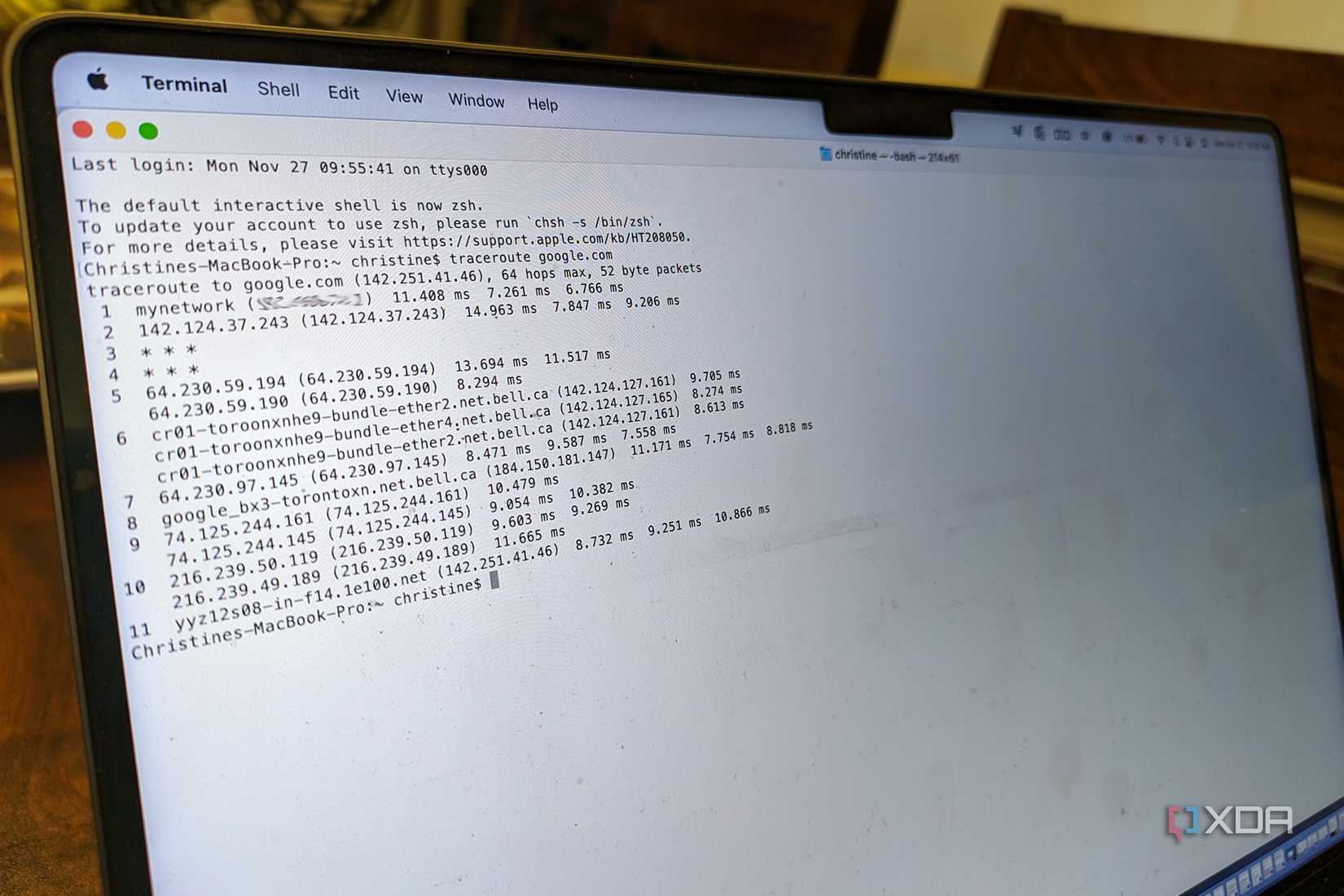
Should ping provide much-needed intel on an issue present somewhere between your device and the destination, traceroute can help pinpoint precisely where this is occurring. If your ISP is currently experiencing routing issues or bad routes are present for specific services, traceroute can provide more insight as to why you may be experiencing some connectivity issues. It essentially tracks each hop between your device and a destination. We don’t simply connect straight to some server in a datacenter. There are various steps along the way.
Any one of these can cause problems, which is what traceroute should be able to relay. Upstream bottlenecks and even some faulty hops causing packet loss can all be detected and acted upon.
Ntopng
Wireshark is also good
Ntopng and Wireshark are two incredibly powerful networking tools that let you capture and see everything happening on the LAN in real time. They’re great for providing me with deeper analysis not available via other means. If I continue to have an issue that persists or need to check whether some smart home device is calling home too frequently, hogging valuable bandwidth, Ntopng is the tool for the job. I can even spot misbehaving hardware, DNS Failures, and hidden malware on the network.
Although I would typically recommend such a packet capture tool for beginners or a homeowner who simply needs to gather some data on what’s happening on their network (some routers can even provide this), it’s incredibly powerful and one I always have available running through OPNsense, providing days of logs to help me troubleshoot.

I monitor my home network by self-hosting ntopng – here’s how
From analyzing your traffic to snooping on malicious devices connected to your network, ntopng can do it all!
Your router likely has some tools, too
Many routers out there will even have some of these tools baked into their firmware. You can often find a router supporting ping, device lists, logs, signal levels for wireless, and other tools. This is all you really need to see devices hogging bandwidth, weak Wi-Fi connections, and downtime with the ISP, though keeping some specific tools available for you to run on other hardware may also be a good idea.
link