


Are you wrestling with whether to stick with Windows or switch to Linux? Don’t want to lose Windows app compatibility but desperately want Linux’s superior privacy and performance? Well, dual booting allows you to have your cake and eat it too.
Use Linux without leaving your favorite apps

When you migrate from Windows to Linux, the biggest issue is the app gap. Many Windows applications just don’t work well on Linux, forcing you to find workarounds or switch tools entirely. Don’t get me wrong—there’s a wealth of robust alternatives available. Instead of Photoshop, you have GIMP or AffinityOnLinux, both of which can fit into professional workflows. Instead of Premiere Pro, there’s DaVinci Resolve, which is widely used by professional film editors. OnlyOffice is also highly compatible with Microsoft Office files.
But here’s the thing—these are still alternatives. The interfaces are different, you’ll need to learn new workflows, and there’s a learning curve—however small. There’s also the chance you simply won’t like how these tools work.
This makes ditching Windows for Linux a huge commitment. However, if you’re dual booting, you can easily switch to Windows when you need your favorite apps, and use Linux for everything else. Say you want to use Linux for its increased privacy and freedom from forced ads and telemetry. In a dual boot setup, you can use Linux for your personal day-to-day tasks, and then switch to Windows when you need those specific tools.
Set up a smooth file transfer system between Windows and Linux so you have access to your important files as you jump between operating systems.
Explore different workflows without leaving your comfort zone
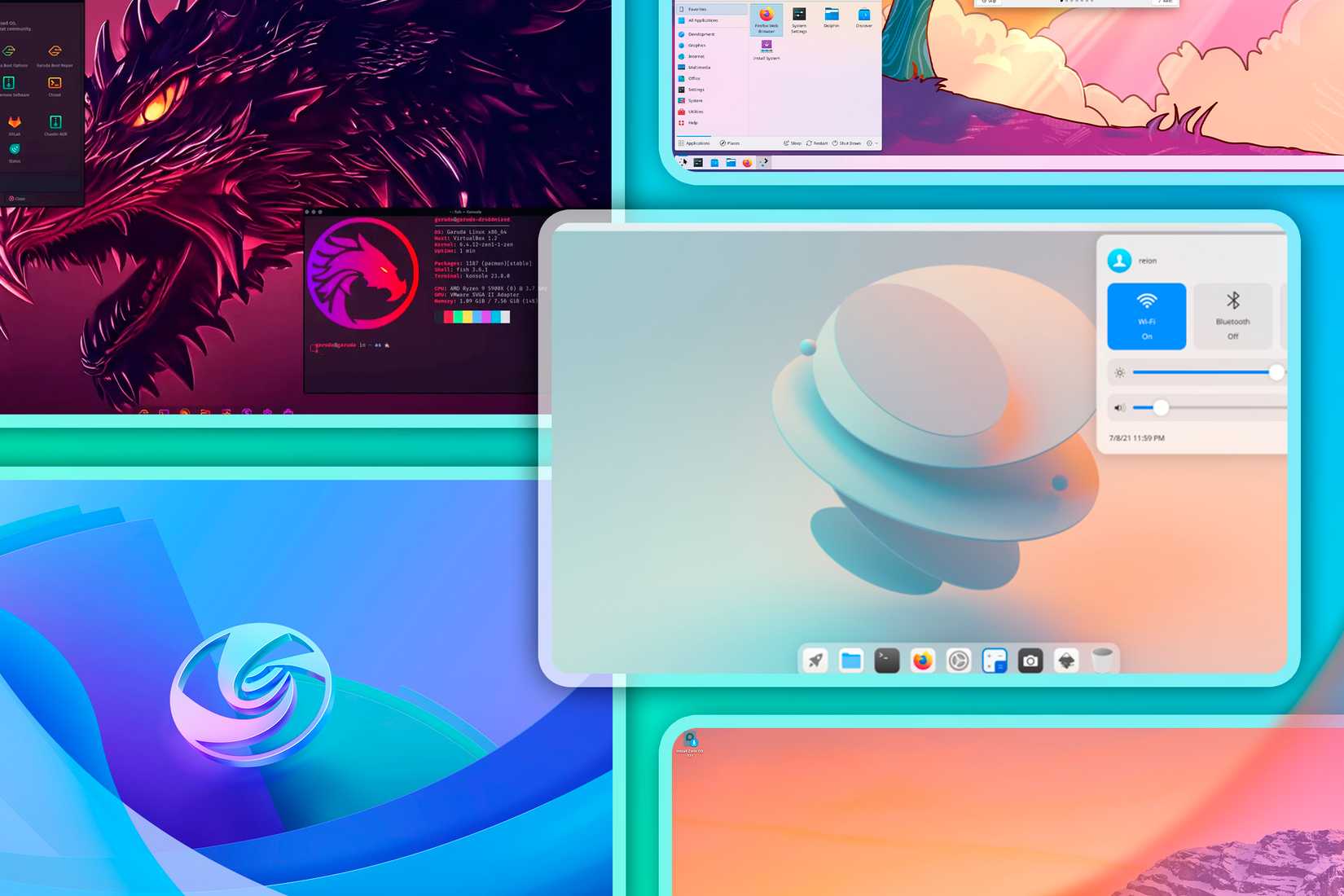
One of the biggest appeals of Linux is its variety of desktop environments. These don’t just change how your desktop looks—they introduce entirely different workflows. It’s actually what got me into the Linux world in the first place. If you’ve always loved customizing Windows, Linux is going to feel like heaven.
Take GNOME, for example, which pushes a unique workflow centered around virtual desktops. It’s excellent if you prefer a minimal setup focusing on one app window at a time. Then there’s KDE Plasma, which ships with a Windows 7-like look by default but is so customizable you can make it resemble Windows 10, 11, macOS, or something entirely your own. Also, if you’re not fond of using the mouse—perhaps due to wrist pain or carpal tunnel syndrome—you can try tiling window managers (TWMs) like Hyprland, which offer keyboard-centric workflows. TWMs are also great for multi-monitor setups, letting you automate where apps open and how they’re arranged on each monitor.
Experimenting with these workflows can be fun, but doing so on your primary system is often suboptimal. Forcing yourself to work in an unfamiliar setup can hurt productivity. This is where dual booting really shines. You can keep Windows for routine work and boot into Linux during your downtime to experiment freely. That’s exactly how I discovered KDE Plasma, which is now my favorite desktop environment.
Assign each system to specific workflows

You can use Windows for professional work, personal projects, gaming, movies, coding, and just about everything else—it’s a capable mainstream OS. The problem is that when one system does everything, it also becomes extremely distracting and counterproductive.
For example, Steam notifications can pop up while you’re working, or the Discord icon sitting in the system tray can pull your attention toward unread messages. Even during downtime, the reverse happens: a Slack ping or priority email can interrupt a movie and drag your mind back to work.
Yes, you could disable notifications and clean up the system tray, but I find that approach suboptimal. A slightly better option is creating multiple Windows user accounts for different workflows. Dual booting, however, takes this idea much further. It gives you entirely separate operating systems, each with its own apps, workflows, and zero cross-contamination from other activities.
In fact, multi-booting helped improve my focus so much, that I currently run a quad-boot system. Windows handles professional work. Garuda Linux is my main OS for personal projects. Ubuntu serves as a testing environment—if something breaks, I just reinstall it. And Bazzite is configured as an HTPC (Home Theater PC) focused on gaming and movies. Each system is purpose-built for a specific workflow, and the intentional friction of rebooting helps keep me focused.
Enjoy the best gaming experience


I’ve been dual booting Linux and Windows for the past decade, and for the first time, I can say this with confidence: Linux gaming is genuinely better than on Windows—at least for games that it can run. At the time of writing, 80 of the top 100 Steam games are playable on Linux. And because Linux is generally lighter and has less background overhead than Windows, games can often make better use of system resources, resulting in higher frame rates or more consistent performance.
In practical terms, if a game runs well on both platforms, you’re often better off playing it on Linux for that performance edge. And when a game doesn’t work on Linux, you can simply reboot into Windows and play it there. The main holdouts are games that rely on kernel-level anti-cheat systems—most notably Call of Duty, Valorant, League of Legends, Fortnite, and Battlefield 6. With a dual-boot setup, that limitation barely matters. You get Windows for competitive multiplayer titles and Linux for everything else, without having to compromise.

Does Linux really run faster than Windows? I tested both to find out
Spoiler alert: Tux has wings.
Have a backup PC built-in
We’ve all been there: Windows suddenly slows to a crawl because it decided to install updates in the background—right when you’re doing serious work. Worse, it might force a restart that eats up 10 to 15 minutes you don’t have because you’re up against a deadline. In moments like these, having access to another operating system is invaluable.
With a dual-boot setup, you can reboot into Linux and keep going. Linux can natively access your Windows files, so you can copy what you were working on and finish the job without losing momentum. That kind of flexibility simply doesn’t exist on a single-OS PC.
It works the other way around, too. Say you’re tweaking something on Linux and accidentally break the OS. However, you don’t have time to troubleshoot right now—you need to get work done. So, instead of being stuck, you can boot into Windows and continue working without interruption.
Well, there you have it—five reasons why dual booting is far better than forcing yourself to choose between Windows and Linux. If you’re worried that setting up a dual-boot system is technically complex, it isn’t. Here’s a simple guide on how to set up your dual-boot PC without any hassle.
link