I tried running Android VMs inside Proxmox
From running macOS inside virtual guests to gaming on VMs, I’ve worked on several weird and borderline unhinged Proxmox projects over the last few months. However, I’ve never extended my reach beyond the PC landscape – and deploying Proxmox on the Raspberry Pi and running ARM64 VMs was probably the farthest I ever went past typical desktop operating systems.

Related
Speaking of, I’ve previously used full-on Android distros and shells on my Raspberry Pi. Building on that idea, it should be possible to use an Android virtual machine with just a keyboard and mouse, right? As you may have guessed, the answer is a resounding yes! But for folks who want a more detailed explanation, here’s a log of my misadventures with running Android virtual machines on Proxmox.
Android-x86 is fairly easy to set up
It works right out of the box…
Since Android-x86 is the first name that pops up when you search for Android operating systems designed for PCs, I decided to use it as the first distro for this experiment. On the workstation side, I used my trusty 64 GB RAM, dual-Xeon power-guzzling machine. Once I’d uploaded the “latest” version of the Android-x86 ISO file to my workstation, I spun up a new virtual machine with an 80 GB SCSI storage volume, 16 CPU (or rather vCPU) cores, and 16 GB memory.

After powering up the virtual machine, I used the QEMU console to check if it boots. To my surprise, I arrived at an outdated-looking UI, where Android-x86 offered me the choice to use a live boot environment or install the OS from scratch. Since I’d already set aside an 80GB disk for the boot drive, I picked the latter. Inside an even more rudimentary-looking interface, I had to choose a drive partition for the VM. Thankfully, doing so was as simple as tapping the Create/Modify partitions option, selecting New inside GPT (the partition table utility, not the AI tool), and hitting Write after picking the name, size, and other parameters for the Android partition.
…Though you’ll have to put up with an outdated version of Android
With the newly-created partition selected, I arrived at the familiar Android setup wizard, though something was amiss: the color scheme was inverted! Nevertheless, I went through a wave of menus, options, and other settings of the wizard before finally arriving at the Android UI. Android-x86 offered me the option to choose between two Home apps: Quickstep and Taskbar. While the latter offers a more desktop-like interface, it messes with the navigation buttons, so I went with Quickstep.
My next objective was to figure out a way to get rid of the weird color scheme. The fix was pretty straightforward, as all I had to do was enable the Color inversion option inside the Settings app to return the already inverted colors back to normal. After waiting for Google Play to finish updating, I tried browsing for some apps – only to find that most of my favorite utilities weren’t available on the store. Turns out, the OS hasn’t been updated past Android 9.0, making it rather outdated for my tests.
As such, Obsidian, Duolingo, Discord, and several apps crashed when I tried booting them, while others like Slack weren’t even available on Google Play. However, I was able to install Geekbench 6, though the benchmark tests were far from impressive. And the gremlin in my head forced me to download a couple of games, though only Vampire Survivors was able to run on the ancient Android-x86 – that too, at terribly low FPS. Clearly, Android-x86 wouldn’t cut it, so I had to look into alternatives… and that’s how I arrived at Bliss OS’ website.
Bliss OS offers decent performance and app compatibility
Troubleshooting the freezes was a pain
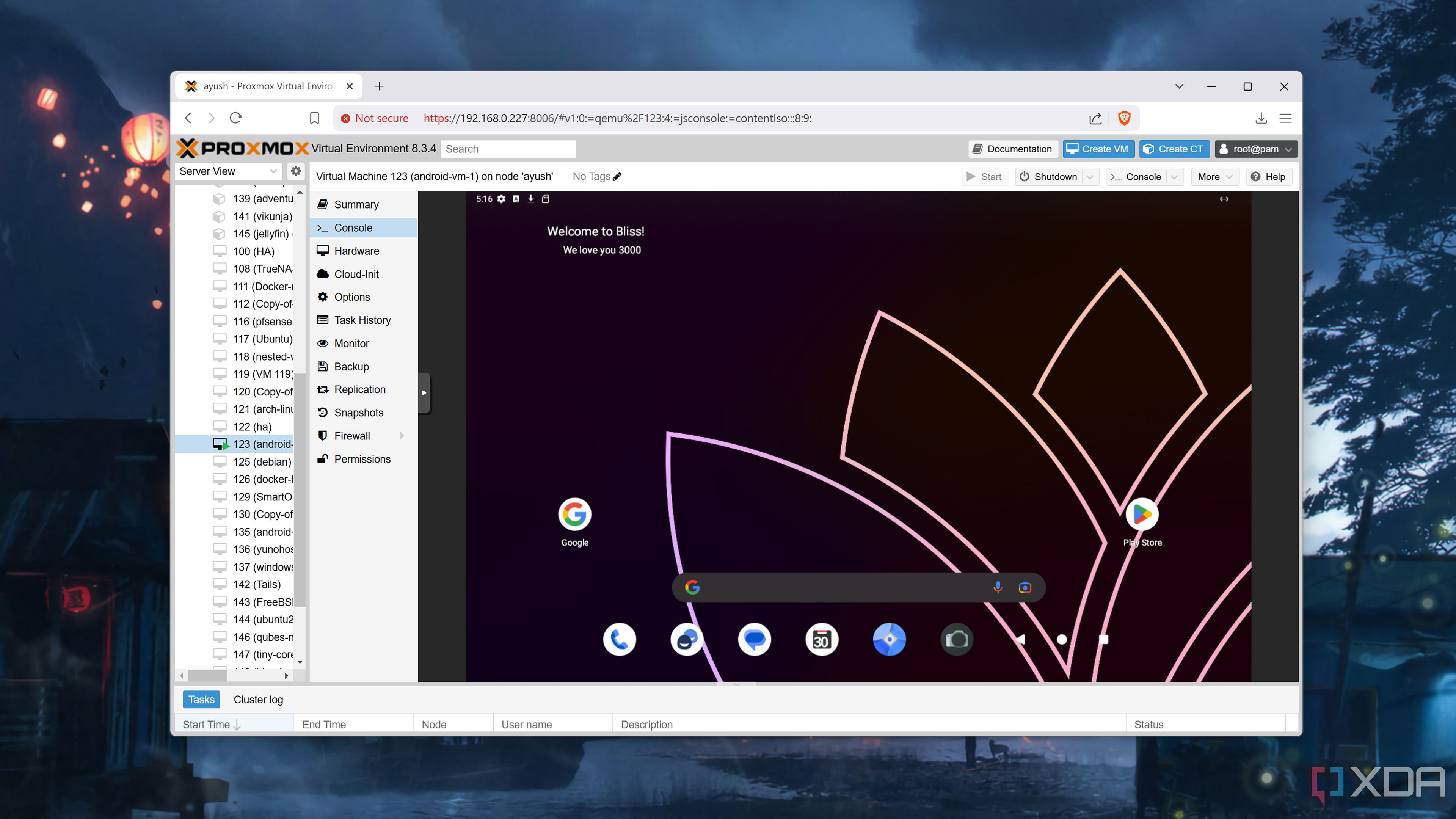
After hearing praise of Bliss OS’ capabilities inside virtualized environments, I knew I had to try it on my Proxmox server. After downloading the stable, Android 13-based ISO of Bliss OS, I deployed a virtual machine with exactly the same specifications as its predecessor. Booting the VM, I arrived at a more modern installation screen, where I again opted to install the OS… and that was the start of an hour-long troubleshooting process.
Ironically, the VM would freeze at the Have A Truly Blissful Experience screen, and choosing the Live CD option after resetting the virtual machine resulted in the same outcome. Putting on my troubleshooting hat, I downloaded an older version of Bliss OS, which didn’t change a thing. A potential fix involved switching to VirtGL GPU as the graphics card and OMVF (UEFI) as the BIOS. But this ended up throwing the no GPU detected error every time I started the virtual machine.
The partitioning process is also more convoluted
Having previously gone through the nightmare called GPU passthrough, I wasn’t ready to spend an entire evening connecting my graphics cards to the virtual machine. Luckily, the solution to the whole debacle was setting VirtIO-GPU as the graphics card. With that, I was able to proceed to the installation screen. But this time, I had to allocate 1GB to an EFI partition while saving the remaining 79GB for the installation partition.
Soon, I arrived at the Android setup wizard, which was a lot more interactive (and animation-heavy) than its Android-x86 counterpart. After setting everything up, I arrived at the Android 13 UI. But to my dismay, the colors were inverted yet again, and I had to re-invert them using the Settings app.
Speaking of apps, the Android 13 variant of Play Store had an expansive collection of tools and games for me to try out. As you’d expect from a 16-core, 16GB memory system, nearly all the productivity, communication, and creativity applications I use in my daily workflow were responsive to the KB+M inputs. Heck, Geekbench 6’s benchmark numbers were nearly double than before, though I can’t say the same for gaming titles.
Sure, simple 2D titles like Brotato, 20 Minutes Till Dawn, and Inotia 4 ran at a sharper resolution with playable frame rates, but the experience was rife with FPS drops and microstutters. And I don’t even need to elaborate on the performance issues when hundreds of enemies started showing up in Vampire Survivors. With all the tests out of the way, it’s time to gauge the practicality of this wacky project.
Should you run Android virtual machines in Proxmox?

If you’re looking to run normal apps instead of games, then absolutely yes! Assuming you can throw enough CPU cores and memory at the virtual machine, Bliss OS will deliver a fairly responsive experience. In fact, it’s probably something I’d use in the future if I ever needed to test a self-coded Android application. For gaming, I’d say you should stick to running your favorite titles on your actual smartphone. But I’ll admit, the (seemingly impossible) idea of enabling GPU passthrough and using it to play mere Android games sounds right up my alley.

Related
Proxmox vs. Harvester: Can the enterprise-grade platform beat the community favorite?
While it’s not very popular in the home lab ecosystem, Harvester has enough features to go toe-to-toe with Proxmox
link