


If you’re on a slow internet connection, you’d expect your YouTube videos to buffer. But what if videos start buffering even when you’re on a modest 100 megabit connection? That was my situation, where YouTube videos kept buffering even at 1080p resolution. I checked whether my ISP was throttling my internet, and it wasn’t the case since my speed test came back at 110 megabits—slightly better than advertised.
I also tried to prioritize my main computer for internet bandwidth through my router settings, but that didn’t help either. As strange as it may sound, what finally made the difference was disabling the IPv6 option in my device’s network settings, and my streaming has stopped buffering ever since.
What is IPv6, and why can it cause buffering?
The newer internet protocol that doesn’t always play nice

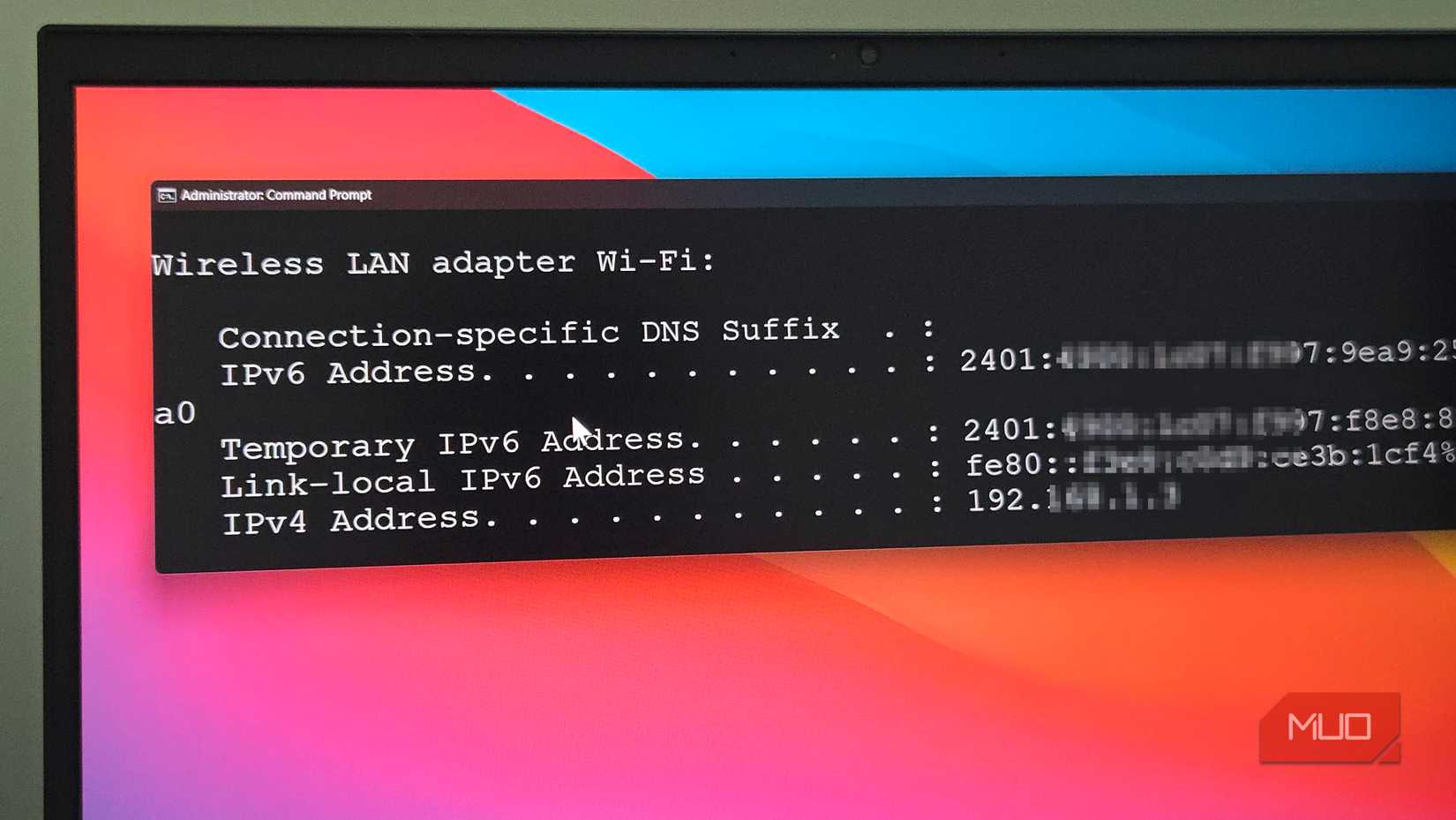
Every device connected to the internet needs a unique address so data knows where to go. IPv4 is the older system that’s been around since the 1980s, and it supports about 4.3 billion addresses. That sounded like plenty back then, but with billions of devices now online, those addresses have essentially run out.
IPv6 was designed to fix this. It uses a much larger addressing system that can support roughly 340 undecillion addresses, a number so big it’s hard to even picture. Beyond more addresses, IPv6 was also supposed to bring faster routing, better security, and simpler network setups and was touted as the future of the internet.
But that future hasn’t fully arrived. After years of slow adoption, perhaps only about 45% of global internet traffic actually uses IPv6 today. Many ISPs, especially smaller ones, still don’t fully support it or have poorly configured IPv6 routing.
Despite that, most modern operating systems, including Windows, still prefer IPv6 over IPv4 when both are available. So if a site like YouTube has both an IPv6 and IPv4 address, your computer will try the IPv6 route first.
When your ISP’s IPv6 implementation is misconfigured or poorly routed, that connection can take a slower, congested path to the streaming server. Sometimes the IPv6 route has more hops, hits congestion, or goes through a tunnel that adds latency. In other cases, the IPv6 connection stalls entirely and your system has to wait for it to time out before falling back to IPv4. That timeout can last several seconds, which is long enough to cause visible buffering on a YouTube video or a stuttering Netflix stream.
I presume this is what was happening on my end. The stream wasn’t slow because my internet was slow, but because my computer kept trying a broken IPv6 path before eventually falling back to the IPv4 one that actually worked. Once I understood that, the fix became obvious, of course.
Turning off IPv6 fixed the buffering issue
A quick settings change that forces your PC to use IPv4
When you disable IPv6 on your device, your computer stops trying that potentially broken IPv6 route altogether. Instead, it goes straight to IPv4 for every connection.
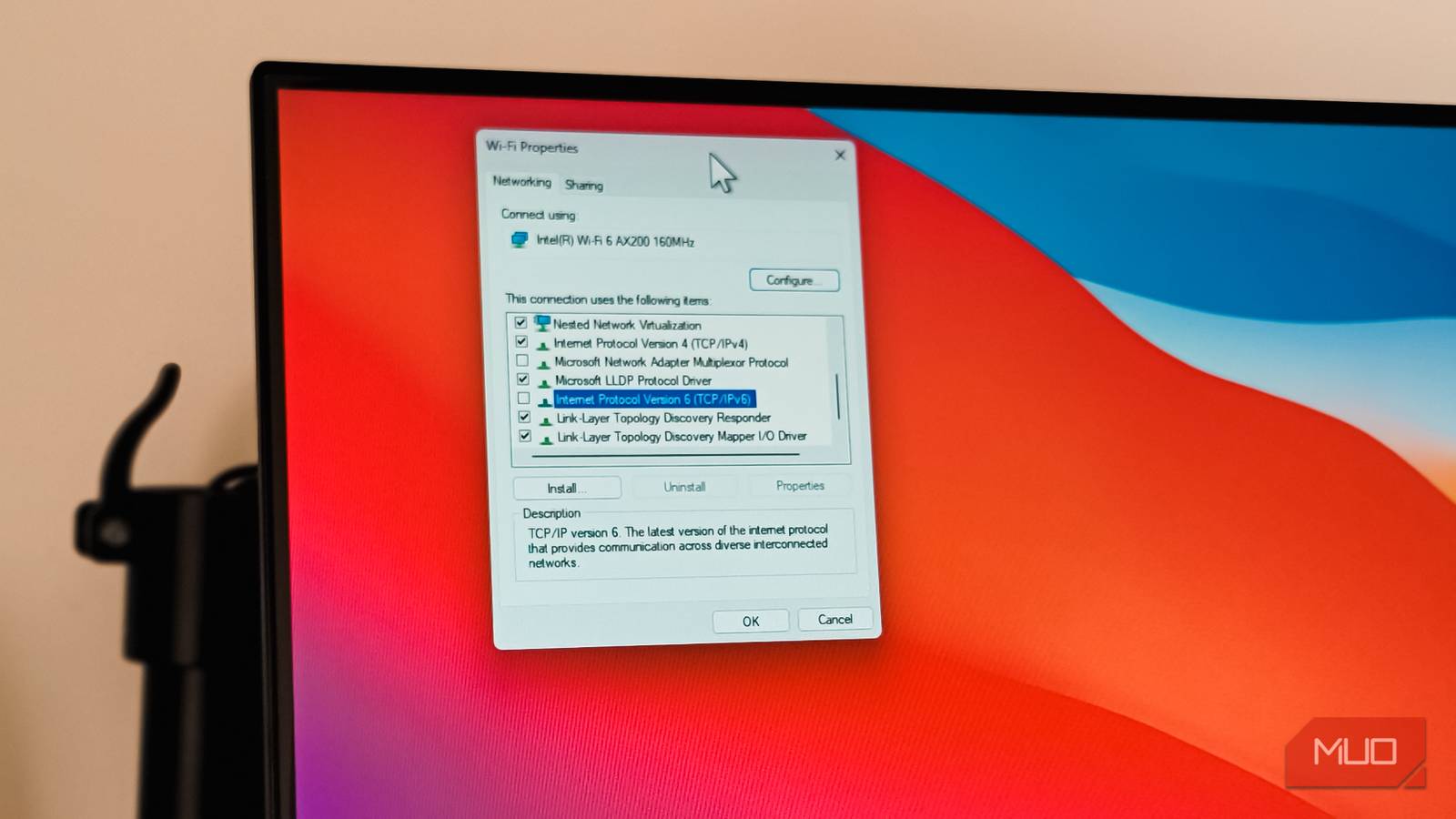
The simplest way to do this on Windows is through the network adapter settings. Open Settings, go to Network & internet, and click Advanced network settings. Under “Network adapters,” select the adapter you use, either Wi-Fi or Ethernet. Click Edit under More adapter options, and in the properties window, uncheck the box for Internet Protocol Version 6 (TCP/IPv6). Click OK and restart your PC for the change to take effect.
If you prefer doing this system-wide without clicking through menus, you can open Command Prompt as administrator and run this command:
reg add "HKEY_LOCAL_MACHINE\SYSTEM\CurrentControlSet\Services\Tcpip6\Parameters" /v DisabledComponents /t REG_DWORD /d 255 /fThis disables IPv6 at the protocol level across your entire system, regardless of which adapter you’re using. You’ll need to restart your PC afterwards.
Even after running this command, the IPv6 checkbox in your adapter properties will still appear checked, but IPv6 is disabled in the background.
Is it safe to keep IPv6 disabled?
It depends on whether you’re at home or at work
For a home network, keeping IPv6 disabled is generally safe today. The vast majority of websites and streaming services are still fully reachable over IPv4, so your daily browsing, streaming, and gaming will work just fine. You’re not really gaining anything by having IPv6 on if your ISP’s implementation is broken.
However, it’s worth keeping in mind that some services and newer networks are increasingly relying on IPv6. Disabling it completely could, admittedly, cause odd compatibility issues as more of the internet shifts toward it. You might also run into subtle problems with some VPN setups or gaming services that work better with IPv6 present.
That said, completely disabling IPv6 isn’t the only option. If you want to keep IPv6 available as a fallback while fixing the buffering issue, you can tell Windows to prefer IPv4 instead by tweaking a registry key in the Registry Editor.
To do this, Win + R, type regedit and click OK to open Registry Editor. Then navigate to HKEY_LOCAL_MACHINE\SYSTEM\CurrentControlSet\Services\Tcpip6\Parameters, create a new DWORD value called DisabledComponents, and set it to 20 in hexadecimal. This makes Windows reach for IPv4 first while keeping IPv6 around for anything that genuinely needs it. Restart your PC once to apply the change.
That said, in a work or enterprise setup, the situation is naturally different. Microsoft explicitly designs Active Directory, Exchange, and other core services with IPv6 enabled, and disabling it is marked as unsupported. Doing so can cause unexpected issues with DNS, VPN clients, and internal services. If you’re troubleshooting streaming issues on a work machine, talk to your IT team rather than toggling network protocols yourself.
The problem is still with your ISP!
Turning off IPv6 fixed a rather annoying issue that cropped up from nowhere, and it might work for you, too. However, it’s more of a workaround than a permanent fix. The problem is usually with how your ISP handles IPv6 routing, not with the protocol itself. When IPv6 is properly configured, it often performs just as well as or even better than IPv4 because it avoids some of the complexity that comes with NAT translation.
If your buffering issues aren’t limited to your PC, you might also want to look at other devices on your network. Fixing buffering issues on a smart TV often comes down to similar network tweaks, and if your TV has an Ethernet port, using a wired connection instead of Wi-Fi can make streaming noticeably smoother.
link