I replaced all my bootable USBs with one Ventoy drive
Installing an operating system needs an essential component, which is a bootable USB drive. You can plug it into any system with a compatible BIOS/UEFI and boot from it. It’s a common practice ever since DVD drives became extinct, and I have been reinstalling Windows and Linux for the past 15 years. However, creating a bootable USB drive whenever I need to try out a new distro seems excessive. Even installing the latest Insider builds on a spare machine can become tedious when you need to create a fresh drive every time.
I was a Rufus advocate for creating bootable USB drives, but I have shifted my stance to Ventoy. It’s an exceptional utility that lets you keep multiple ISO image files on a single USB drive and is bootable on any system. I have benefited a lot from it as I keep a dedicated USB drive whose sole purpose is to keep multiple bootable ISO files. Once you switch to Ventoy, you’ll escape the pain of creating a fresh drive every time.
Everything in one place
No juggling needed
Keeping a bootable USB drive of your current operating system is a wise approach. Whenever you encounter an unresolvable problem that a built-in utility cannot fix, you can use the bootable USB drive to get out of the situation. I have had Windows machines (both physical and virtual) annoy me several times to the point that a clean install is the best course of action.
The Ubuntu machines give a little less headache, but when I am building a Docker Swarm cluster or when I want to try a new distro, the USB drive comes in handy. However, there’s a limit to the number of USB drives you can keep. Imagine keeping a pile of USB drives, each labeled with its respective operating system, and then picking one when you want to reinstall.
Ventoy can host multiple operating systems on a single drive, and the only limiting factor is its capacity. You can pick a 64 or 128GB USB drive, or even a cheap SATA SSD of 128GB or more, and build a multi-boot drive with it. An operating system is 5-6GB in size, at least for the most popular ones like Windows 11 or Ubuntu. Whenever you need to reinstall anything, you can use the drive and boot the operating system you currently need.
If you are paranoid, you can keep an additional Ventoy drive just in case the first one decides to quit. But it’s a rare case, and I haven’t had the Ventoy drive fail me once until now. I’m happy that I don’t have to juggle between drives or reconnect them to switch to a different bootable OS. I don’t need to buy several cheap USB drives and can use just one for all my reinstallation needs.
Easy to manage
No need to recreate bootable media

Whether you use Balena Etcher or Rufus, one thing is constant. You need to pick a USB drive, select the image file, and then configure the settings before formatting the drive and creating a bootable one. It has an entirely different approach because you make a bootable USB drive only once.
After that, you don’t need to format it to add a new ISO file for a new operating system version. I can simply copy the file into the Ventoy folder, and the ISO will appear in the bootable OS list when I access it in the BIOS. So, my effort is drastically reduced to downloading and copying the ISO file.
Sometimes I directly pick the USB drive as the ISO download location to save more time. Purging old ISO versions is simply a matter of deleting them from the USB drive.
Personalized installation experience
Customizable menus and options
Mostly, when you boot from a USB drive, you encounter a device selection menu that looks prehistoric. Immediately after that, you enter the setup mode of the operating system. It offers a multi-boot experience with an easy-to-navigate UI, and that’s the best part of using it.
When you create a bootable Ventoy drive, it stores everything in a separate partition, including the tools. You don’t need to interact with it, and only need to paste the image files into a drive named Ventoy. Remember that the tool supports multiple other image formats, including ISO and IMG, so you aren’t restricted to one format.
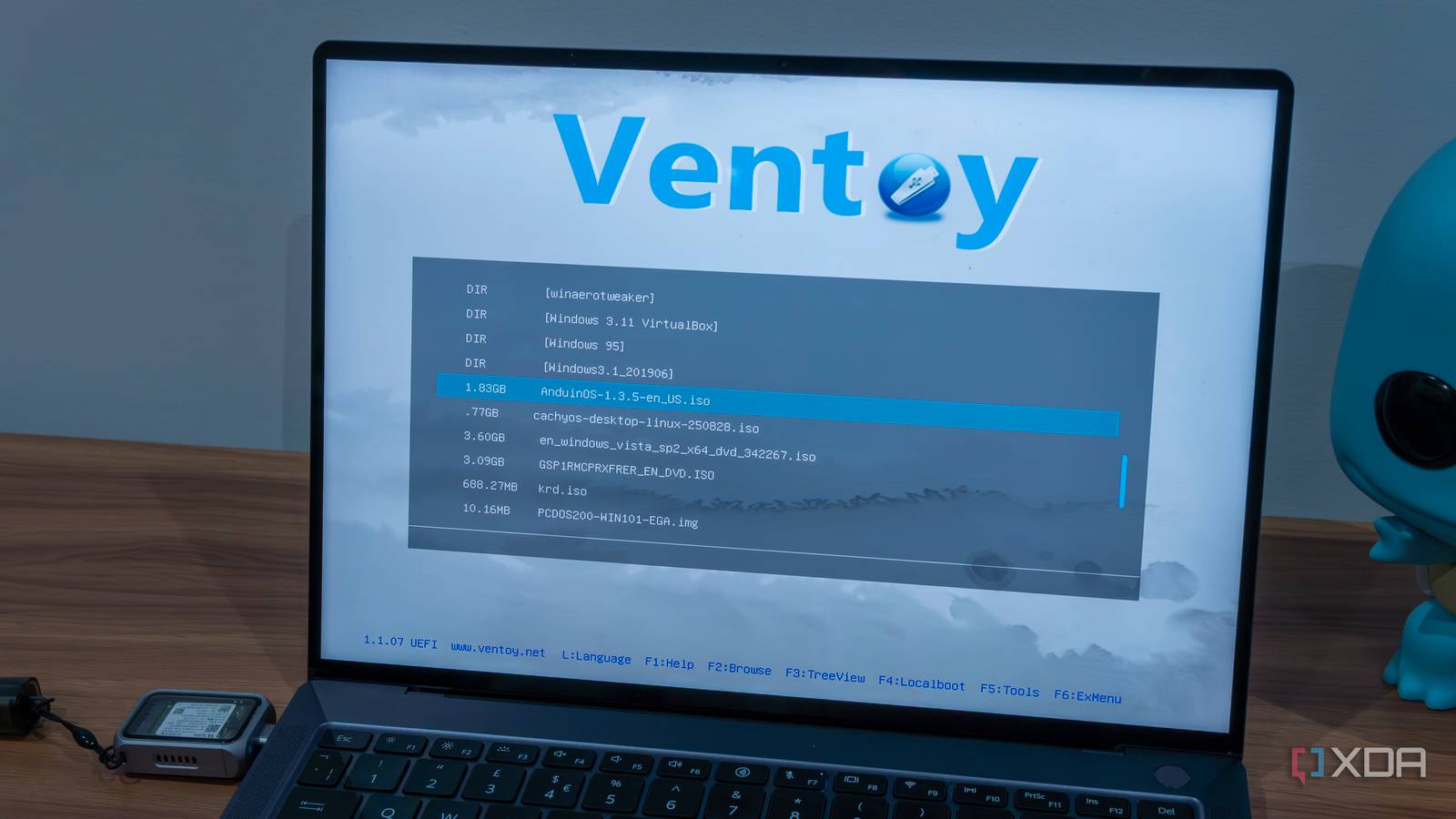
The USB boots into a modern interface with UI elements that list your available operating systems. There are myriad settings to configure to personalize the UI. You can change its resolution and size, and you can even change the language.
I also appreciate the effort to include boot-time tools, such as removing the TPM and secure boot requirements for Windows 11 installation, and bypassingMicrosoft account restrictions. You can use these tools before installing the OS.
Ventoy receives regular updates, which you can check and install using the Ventoy2Disk tool. It displays the current available version and the installed version, and can update it in one click. You won’t lose any data on the drive, so no trouble of recopying multiple image files to the drive.
There’s also a clean drive option in the tool that can purge everything without formatting the drive. You also get the option to choose between MBR and GPT partition styles.
One tool to manage it all
Ventoy is the ultimate multi-boot USB drive creation tool, in my opinion. I also use PINN, a similar tool for my Raspberry Pi OS installs, but that’s for installing multiple OS on the same disk drive. It is community-maintained, regularly updated, and doesn’t cost a dime to use.
It supports both UEFI and BIOS systems and is extremely simple to use. You can finally be free from the headache of keeping and recreating multiple bootable USB drives once you create a Ventoy USB. A better idea is to also include ISO files of popular troubleshooting and backup tools like Clonezilla on the drive. If you aren’t using it, you must switch now.
link