


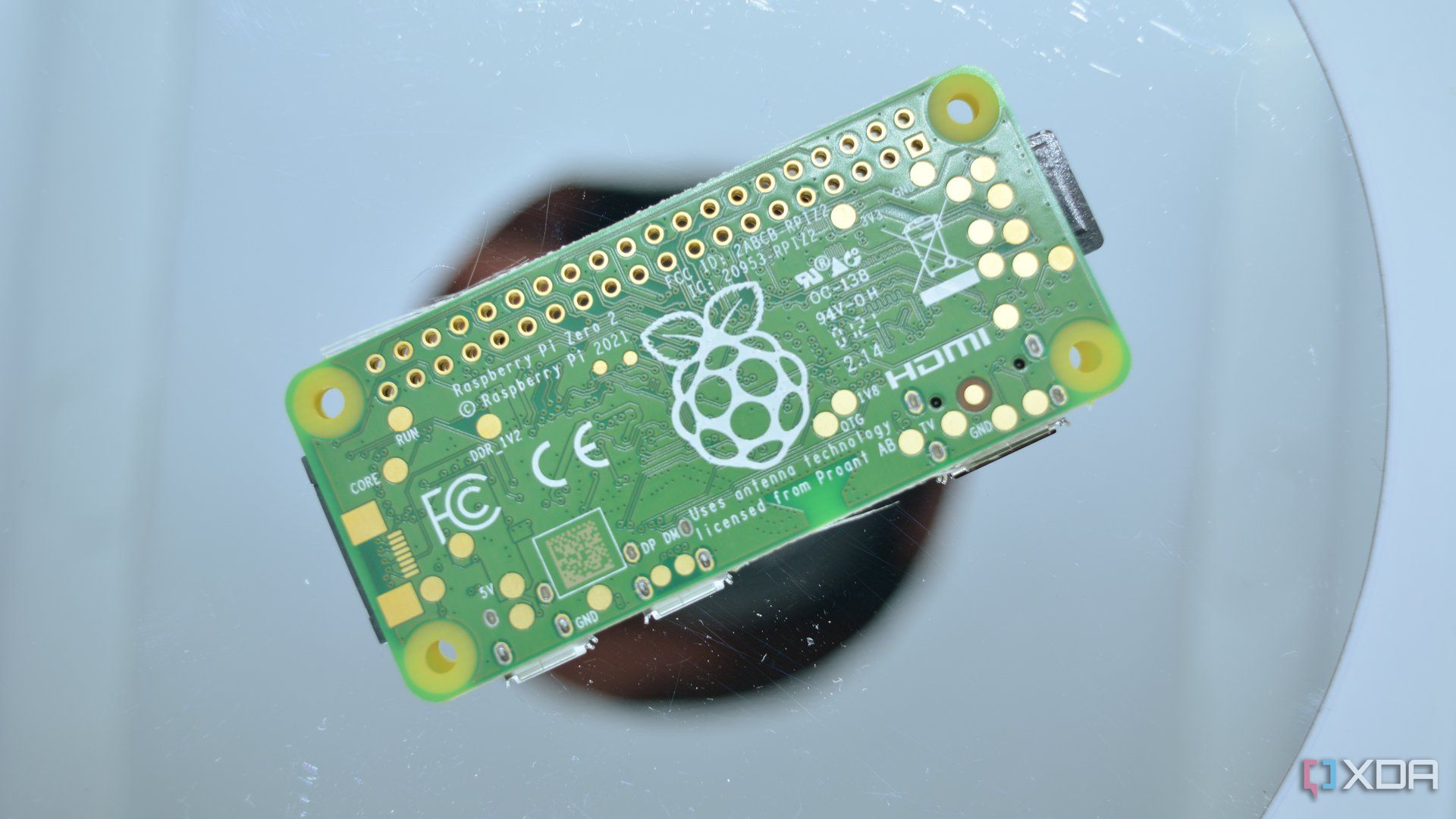
The Raspberry Pi OS has evolved considerably from being a Debian fork (Raspbian) into a mature operating system, just about staying ahead of competing distros. Unless you have a very specific purpose in mind, I don’t think you need a different OS.
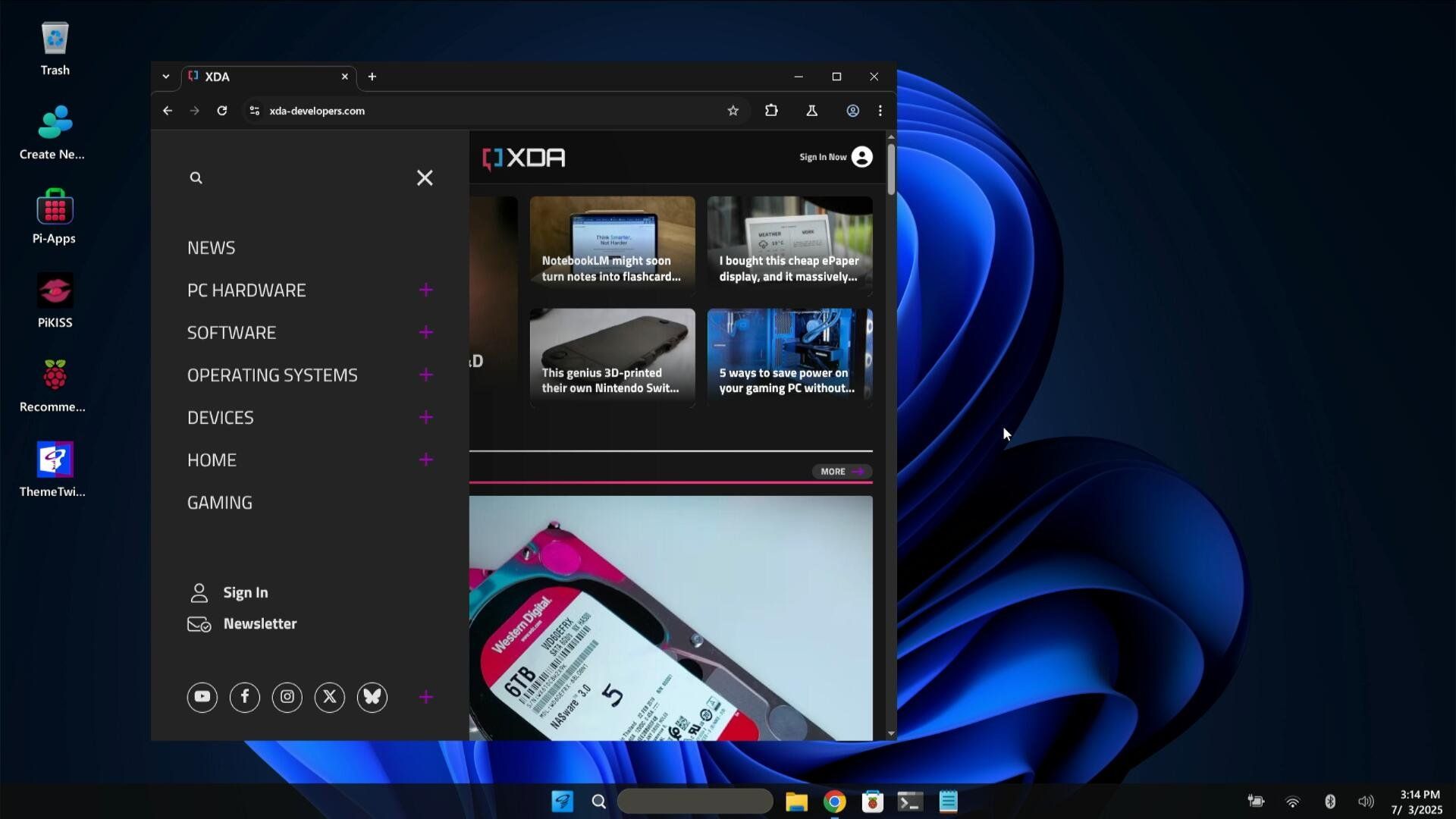
Take Twister OS, based on Raspberry Pi OS Lite and featuring the Xfce desktop. It features a UI (user interface) switching tool that can turn your computer instantly from one desktop style to another. These are very specifically themed, too, so one moment, I might be using a Windows 11-style desktop, and with a couple of clicks, it turns into an environment that feels just like macOS.
Getting Twister OS on your Pi
Try your Raspberry Pi with a twist

Because I like to run multiple projects on my Raspberry Pis, I keep a set of dedicated microSD cards. These are the ones I fall back to — or clone — when I want to run a Raspberry Pi for a particular task. In this library are Raspberry Pi OS, Ubuntu, Windows 11, and RetroPie (for retro gaming on the Raspberry Pi). These are all ready to run when inserted and booted up. I didn’t think I needed another fallback, but Twister OS might have changed my mind.

Related
4 reasons why DietPi Dashboard is more than a pretty GUI
Managing a headless Pi is a lot simpler when you use a GUI interface like the DietPi dashboard with full system control.
The fact it has a load of apps preinstalled is just the, um, cherry on the pi…
If you use a Raspberry Pi 4, 400, 5, or 500, you can run Twister OS. I used a Raspberry Pi 5, but have previously used the Pi 4 for this, and it works just as well.
Twister OS is compatible with other SBCs (RockPi 4B/4C, Odroid N2/N2+) and standard Linux computers as well. To use Twister OS on a laptop or desktop, you need to first download and install Mint Xfce or Xubuntu.
The installation relies on the usual Raspberry Pi Imager or BalenaEtcher method, writing the OS to an unused microSD card. So, after downloading the Twister OS image file, I launched Raspberry Pi Imager on my PC and inserted a fresh microSD card.

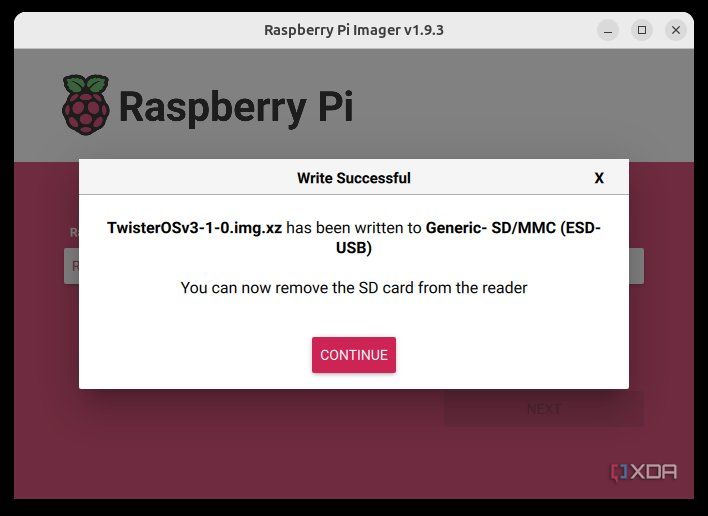
After selecting the Pi model and the Twister OS IMG file, I chose the microSD card as the destination and began to write the image file. Once the process was completed, I ejected the microSD card and booted the Raspberry Pi with it.
A default username and password is pre-configured in the Twister OS image. It is recommended that you change this.
Once booted, you have the option to open the Raspberry Pi Configuration tool to change the password, connect to Wi-Fi, and check for updates to Twister OS.
How I flip my desktop theme
Let’s twist again like we did last summer
Using the ThemeTwister app on the left-hand side of the desktop, I can select from all the included themes in Twister OS.
These can be grouped by the desktop OS they’re based on.
-
Linux
- Twister OS Light
- Twister OS Dark
- Twister Plasma Light
- Twister Plasma Dark
-
Windows
- Twister 95 (a Windows 95 theme)
- Twister XP
- Twister 7
- Twister 10 Light
- Twister 10 Dark
- Twister 11 Light
- Twister 11 Dark
-
MacOS
- iTwister X Light
- iTwister X Dark
- iTwister XV Light
- iTwisterXV Dark
All I need to do to switch is select the theme I want in the ThemeTwister, then hit Enter at the prompt to continue. This restarts the sessions, so I need to log back in.
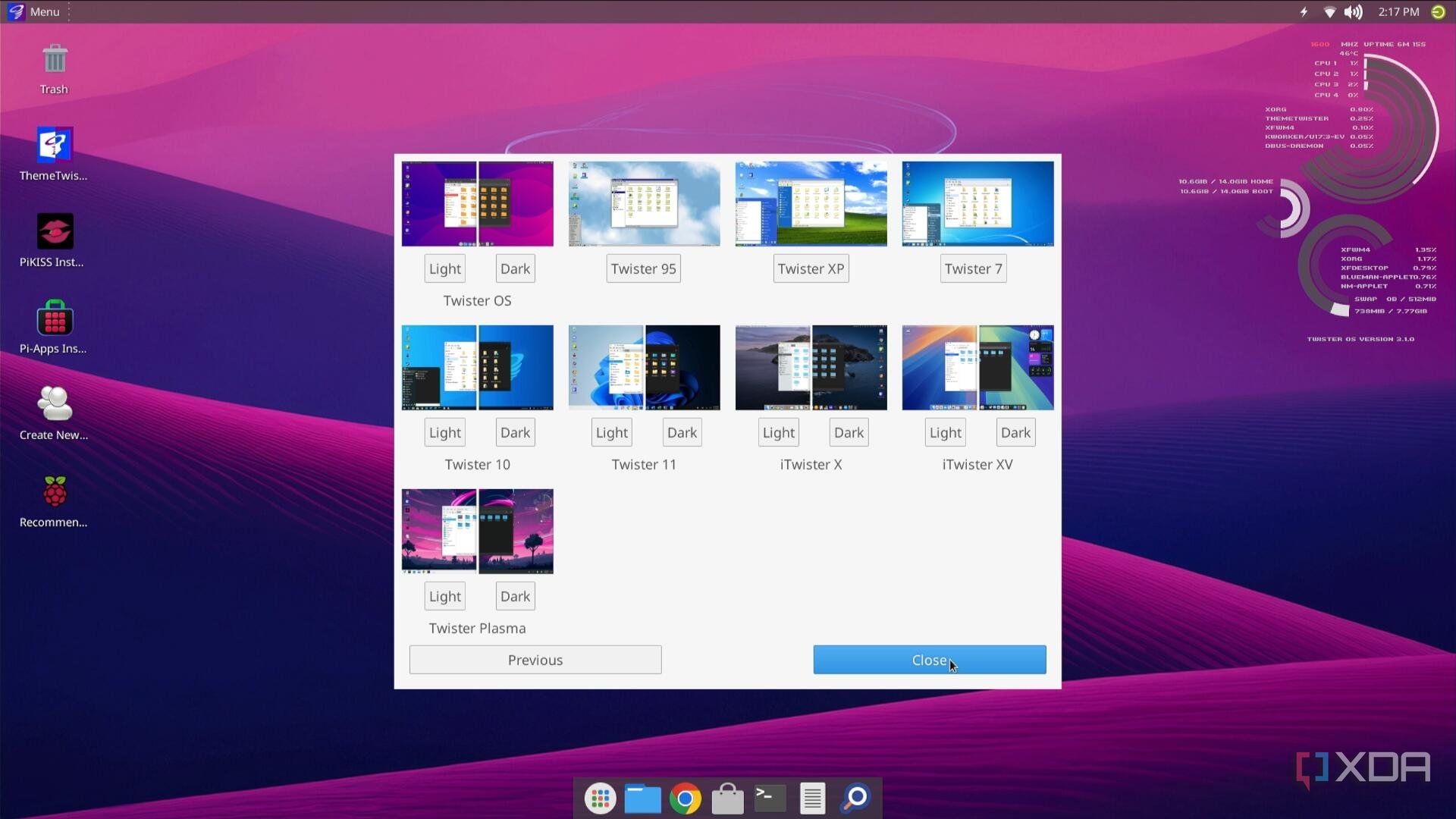
Once I’m happy with the selection, I can also make some theme-based tweaks. For example, opening the desktop settings lets me alter the background image, and there is an option to do this in all themes.
Twister OS makes it easy for me to install software
Just twisting the theme away
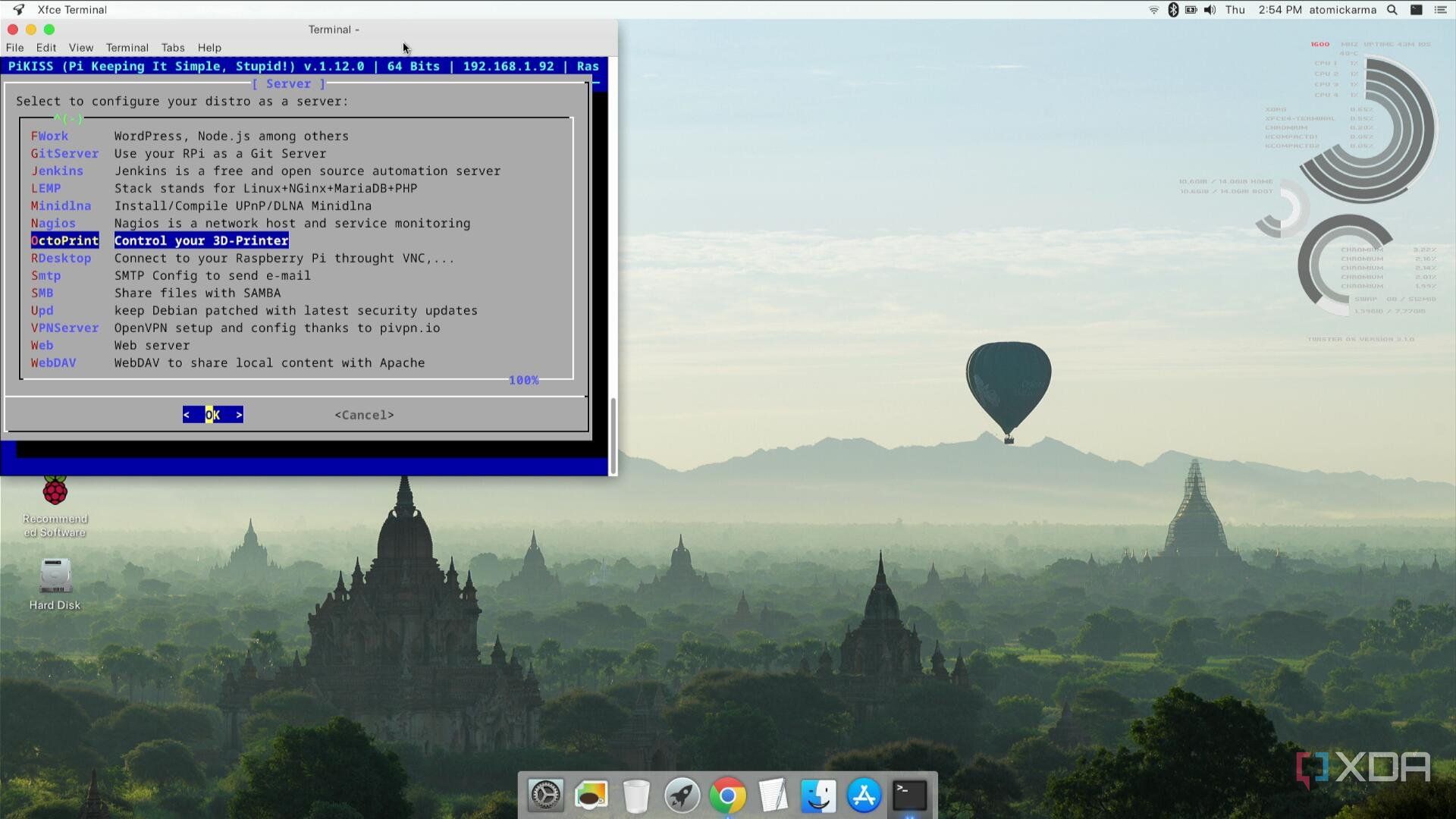
All the usual Raspberry Pi apps are included in Twister OS. These are either pre-installed or can be added.
What I really appreciate, though, is that multiple options are available to add new software. Four “store” options are included.
- PiKiss: This is mainly scripts for emulators, tweaks, media streaming, and servers.
- Pi-Apps: Most of the software I use on a daily basis on Linux can be found here.
- Recommended software: Apps and utilities recommended by the Raspberry Pi OS developers can be installed.
- Add/remove software: I think this older tool looks a bit tired now, but it includes almost every Pi-compatible Linux app that can’t be found in the other repositories.
Both PiKiss and Pi-Apps will auto-install on their first run. Of course, I can install software from the terminal should I want to.
Twister OS: Raspberry Pi or desktop?
You can twist any desktop you like
My own laptop is optimized for specific tasks, and at this time, I’m not quite ready to switch from Ubuntu to Twister OS. However, if I was setting up a new computer, Twister OS would be on my list of options, as everything is just about ready after installation.
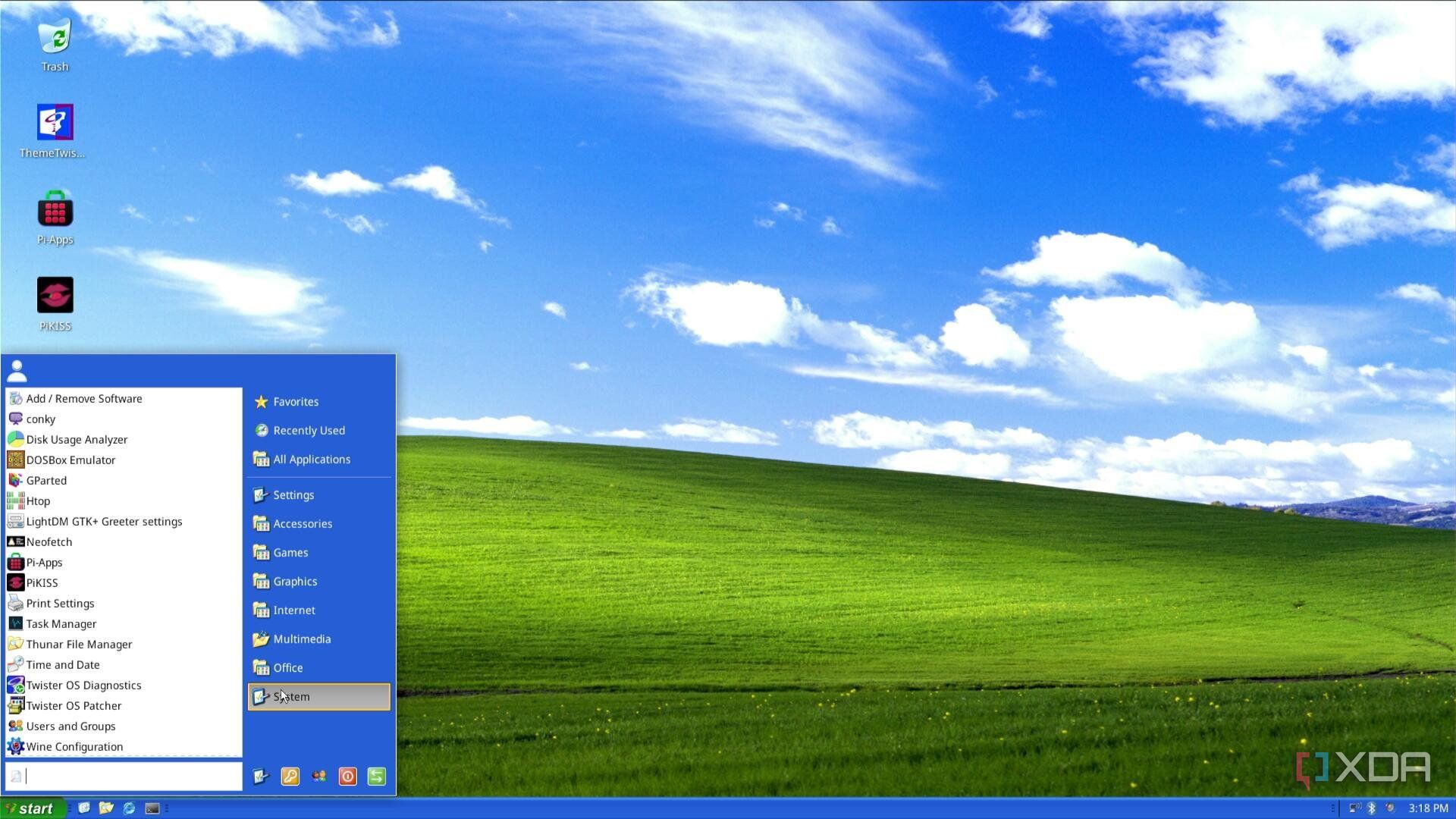
The OS is actually jam-packed full of useful stuff, with apps either preinstalled or with installation scripts ready to run. This sits squarely with its aim, which is to “provide a true desktop computing experience for single-board computers (SBCs), right out of the box.”
Having the option to run it on Raspberry Pi and other SBCs provides a great experience, but I suspect it might be even better on a desktop or laptop.
All the other stuff I like in Twister OS
Multimedia, gaming, and utilities
The list of pre-installed apps and scripts is exhaustive and cannot be included here due to space constraints. Office and productivity tools, emulators for x86 and x64 software (tools you might typically find on Windows), and even games are either ready to run or prepped for installation.
One standout inclusion is one of my favorite Linux apps, the Rainmeter-like tool Conky. This is a configurable tool that comes preinstalled on Twister OS, and displays current resource usage. Conky runs automatically on some themes, but if it doesn’t appear, I just launch it manually from the menu.
As a bit of a performance nerd — especially when it comes to squeezing as much out of an SBC like the Raspberry Pi as possible — I particularly like the inclusion of Conky.
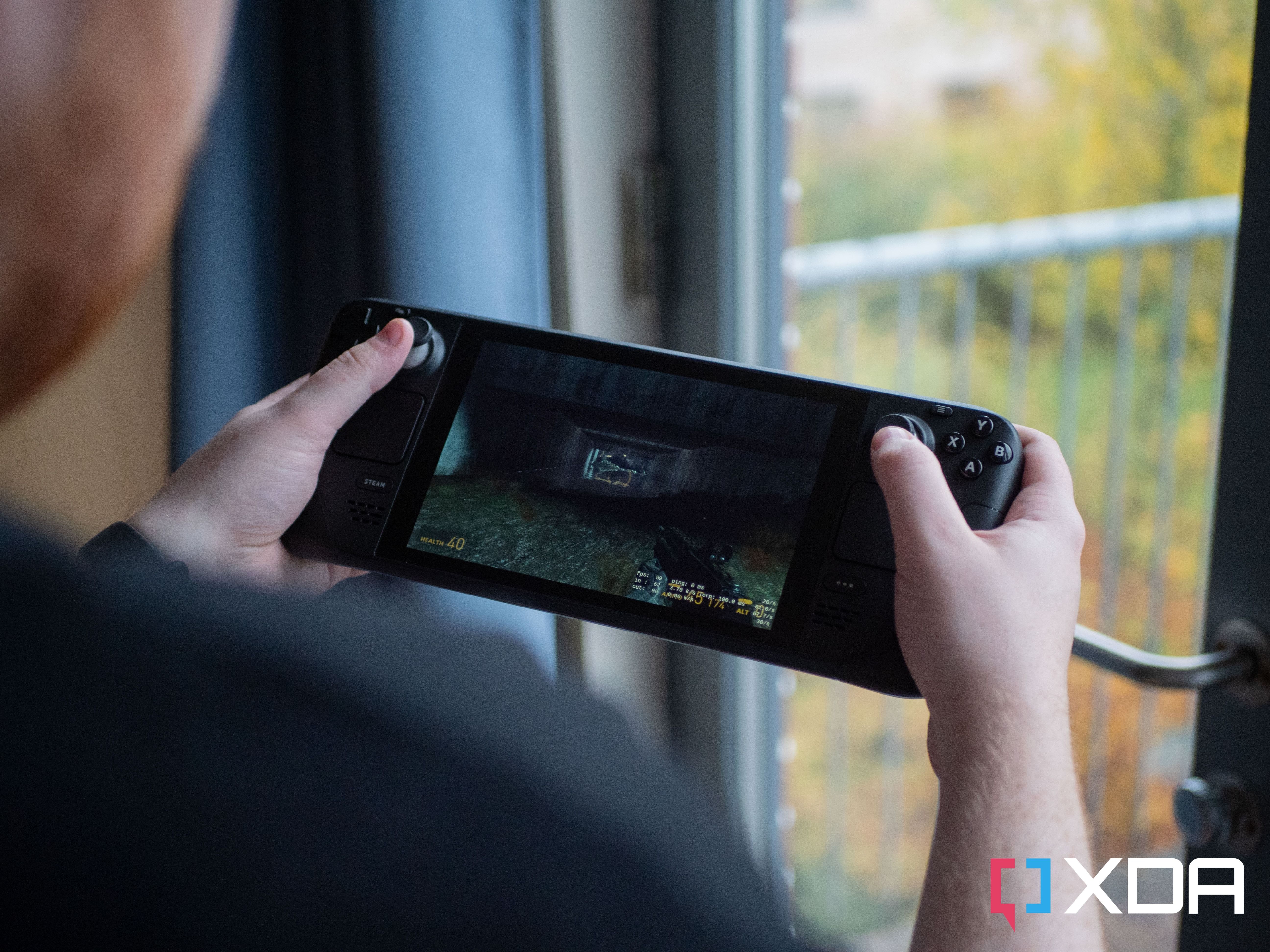
If I’m in the mood for some gaming, DOSBox is preinstalled (although I prefer to turn my Raspberry Pi into a retro PC with Faux86), and I can easily install classic DOOM, or open-source clones of other classic games, in PiKISS.

Related
8 classic games you haven’t played (but should)
There are a ton of games out there that you should play, and these are some of the classics that formulated my childhood.
Twist away from tired desktops
The vast selection of Raspberry Pi operating systems might leave you spoiled for choice. But what I like most about Twister OS is that you don’t need to worry about that.
Often, when we consider an operating system, we’re thinking about the desktop environment as opposed to the actual OS. Switching — or “twisting” — the theme instantly renews and revitalizes a tired, over-familiar desktop. Twister OS is great and is now a permanent entry in my library of Raspberry Pi microSD cards.
link