This legacy Windows feature still slows down modern PCs
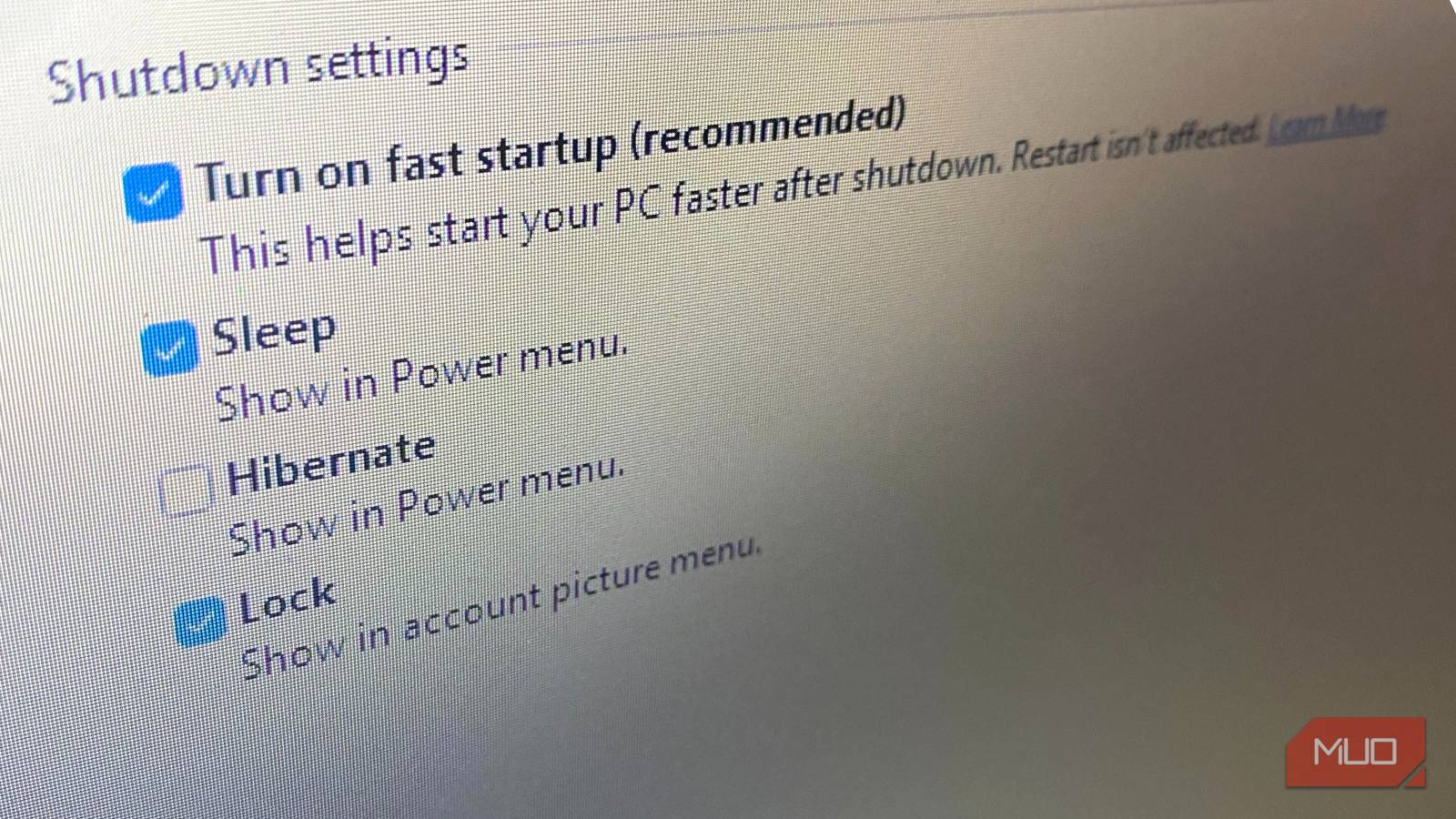
Boot speed is rarely a problem associated with modern Windows computers. They come with SSDs and powerful CPUs and can reach the desktop in a couple of seconds. But this has not stopped several people from experiencing occasional slowdowns and inconsistent behavior that shows up just after what seems to be a normal restart.
Surprisingly, the culprit is Fast Startup, a Windows feature designed to speed up boot time. This feature once solved a problem on older generations of Windows PCs. However, on modern PCs, it may only be trading reliability and consistency for a feature that addresses a problem that no longer exists. So I would rather seek other solutions to cut my computer boot time rather than enable Fast Startup.
Fast Startup was built for yesterday’s Windows PCs
Mechanical drives needed shortcuts that modern storage doesn’t

In the days when Fast Startup was needed, Windows computers mainly relied on spinning hard drives. At that time, completing the boot process required waiting for the disk to seek files, drivers to load, and the system to initialize. In the end, you might wait in excess of 45 seconds to get to the desktop. Reducing startup time on office laptops and budget computers was a clear way to improve the Windows experience.
Microsoft introduced the hybrid shutdown process as a solution to achieve shorter boot times. It meant that instead of totally closing the OS at shutdown, Windows saved parts of your system state on the disk. These saved components are reused the next time you boot, improving the time it takes to shut down and boot up.
However, over the years, hardware has evolved. With SSDs and especially NVMe drives, you no longer face the delay that Fast Startup fixed. Without shortcuts, boot times on Windows are now measured in seconds, making Fast Startup feel more like a leftover feature from a different era.
A shutdown that never fully clears the slate
Windows resumes instead of starting clean

With Fast Startup on Windows, a shutdown doesn’t fully shut down your system. Because your kernel session and loaded drivers are saved to a hibernation file, the next power-on only reloads the saved state; the computer doesn’t start from scratch.
This shutdown and startup behavior puts your computer somewhere between a real restart and hibernation. Even though this kind of shutdown closes user sessions, the system core is only frozen and resumed later. It mimics a normal shutdown, so you wouldn’t see anything unusual when you use Fast Startup.
However, for modern computers, it creates some friction. You’re using newer hardware and updating drivers more frequently. These, along with modern power management features, work better with a clean initialization cycle. Fast Startup skips this clean boot and can introduce certain inconsistencies that may pile up and only resurface after several boot cycles.
Small driver issues quietly stack over time
Hardware never gets a real reset
Drivers are the most common casualties of Fast Startup because they rely on proper initialization during boot to function correctly. If Windows is resuming a saved state rather than re-initializing from scratch, the drivers may not get an opportunity to fully reset.
You may notice Wi-Fi failing to connect, inconsistent USB device detection, and audio can be inconsistent, needing you to unplug and replug a device. These are possible to dismiss initially, but in the end, the one-time annoyances turn into patterns.
These are the times when you’ll find a full restart more powerful than a shutdown because restarts bypass Fast Startup. A full restart forces the operating system to reload its drivers and re-initialize hardware from a clean state, giving your computer the reset modern systems rely on for stability.
System updates don’t always land the way you expect
Changes wait for a shutdown that never happens

After updating Windows or installing new drivers, you often need a complete shutdown cycle to finalize the changes. During these cycles, files are replaced, drivers reload, and certain system components are re-registered. It’s only after all these steps have happened that the updates work as intended.
Fast Startup may interrupt these events. So even though your updates appear to install correctly and the system shuts down, you may still encounter underlying issues after booting back up. Certain new features may fail to activate, and even if you get continuous prompts for restarts, they may not complete the job. In other cases, the drivers may continue to act inconsistently.
This state of confusion highlights the difference between restarting and shutting down. While a restart forces the operating system to apply changes, a shutdown with Fast Startup leaves pending updates in a state of limbo because it reloads the previous state.
You should know that if Fast Startup is not the problem, the delay may have nothing to do with Windows at all, and could be happening before Windows even started loading, during the BIOS phase.

Why I Never Put My Windows PC to Sleep
It’s less helpful than you think.
Disabling Fast Startup brings consistency back
On a modern computer, turning off Fast Startup doesn’t suddenly make it slow. On the upside, it becomes more predictable. The difference it makes in boot time on SSDs is minimal; you may get faster boots by three to five seconds. This difference is hardly noticeable.
As long as your computer uses modern hardware, it’s wiser to turn off this default setting. This way, every reboot is a true clean start with drivers re-initializing and updates completing as intended. So it’s a setting I refuse to enable on my computers.
link